Live transcription
Read English speech as it happens. Choose Tiny, Small or Medium transcription models in Settings to suit your device.
 Edge Note
Local transcripts.
Clear speaker labels.
Optional AI recaps.
TXT + MP3 exports · Desktop Chrome 116+
Audio stays on your device.Privacy details
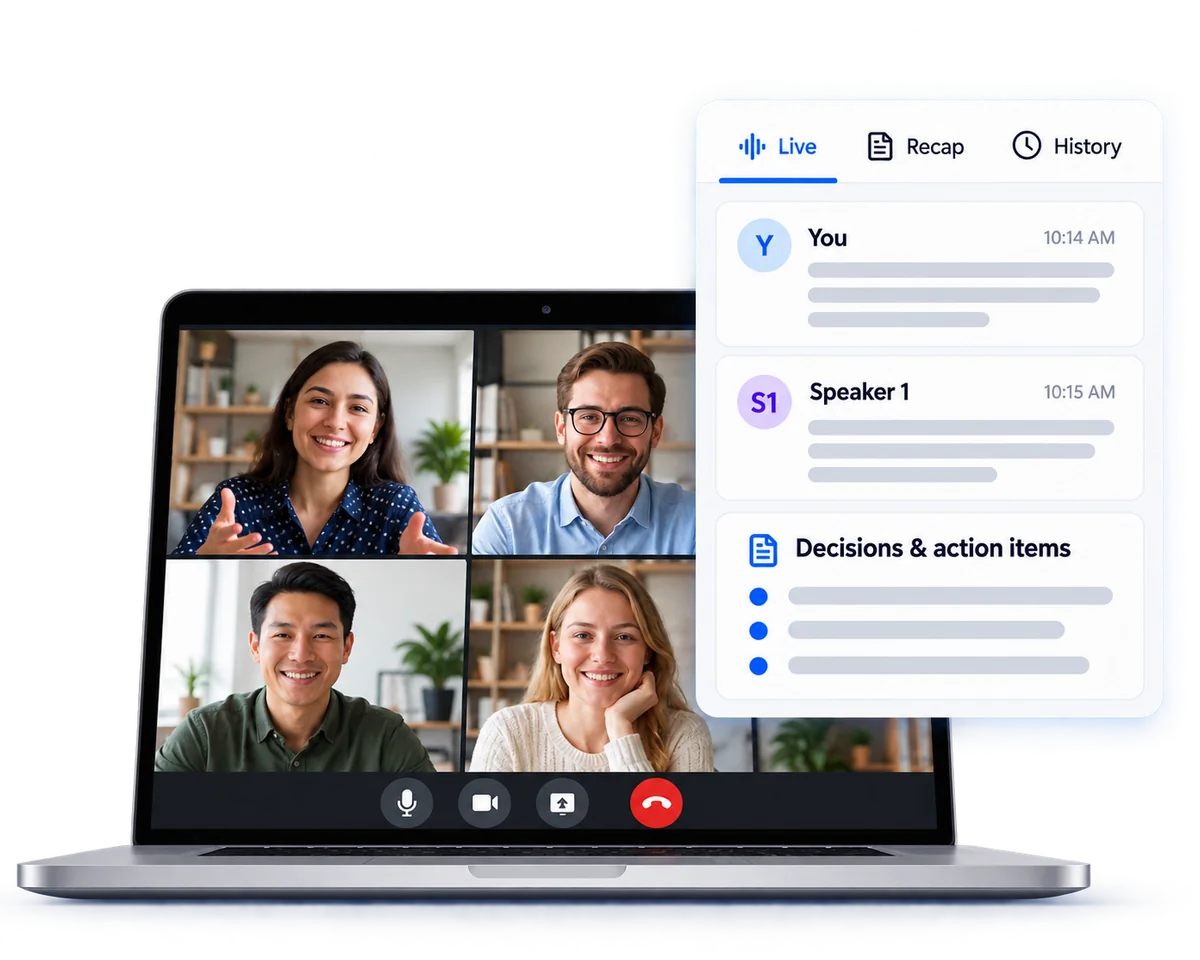
Read English speech as it happens. Choose Tiny, Small or Medium transcription models in Settings to suit your device.
Follow timestamped speaker turns, with your microphone labelled You. Rename speakers after recording to make the transcript easier to read.
Enable an optional Small or Medium insights model to suggest task, question, decision and discussion labels. Insights are off by default.
Search saved conversations and revisit transcripts, completed recordings and recaps in this browser profile.
After recording finishes saving, download your transcript and audio separately. New meeting clears the workspace and keeps the previous meeting in History.
Request a summary, decisions, action items, open questions and key numbers through your own signed-in provider account. No API key is needed.
Audio, speech recognition, speaker detection and meeting insights run locally. Models are downloaded and cached in your browser.
Only when you request a recap, your transcript and recap instructions are sent to your selected Gemini or ChatGPT provider. That provider’s policies apply.
Transcripts, completed recordings and recaps are saved on this device. You control exports and deletion. History is not automatically synced or backed up.
Install Edge Note from the Chrome Web Store, then pin it in Chrome. Open your meeting tab and click Edge Note to open the side panel. Allow microphone access to include your voice.
Wait for the default Tiny speech and speaker models to download and load. For other transcription models or optional insights, choose Download in Settings. Downloads need an internet connection and local storage.
Select Start Recording, choose your meeting tab in Chrome’s picker and enable tab audio sharing. Get the required participant permissions before recording. Recording continues if the side panel closes; closing the separate recording window stops capture.
Select Stop Recording and wait for processing and local audio storage to finish. Use the meeting menu for TXT and MP3 downloads, or choose Gemini or ChatGPT in Settings and select Generate Summary in Recap.
Edge Note is free to install and use. Optional recaps use your own Gemini or ChatGPT account, subject to that provider’s plans and limits.
Transcription, speaker detection and meeting insights run locally once their models are downloaded and available. Initial downloads and optional Gemini or ChatGPT recaps require an internet connection. Models and recordings use device storage and memory.
History stays in this browser profile on this device. It is not automatically synced or backed up. Export important transcripts and recordings before clearing extension data or uninstalling. Deleting a meeting removes its saved transcript, audio and recap; exported files and provider chats remain separate.
Sign in to the selected provider and complete its welcome screens, then use Retry Generation. If needed, use Copy prepared prompt and import the finished response with Paste Recap. Provider availability, account limits and page changes can affect generation. Cancelling in Edge Note may leave a submitted request running in the provider tab.
Speech recognition, speaker labels, insight tags and AI recaps can make mistakes, especially with overlapping speech or similar voices. Review the transcript and recording before relying on a decision, assignment or summary.
Get Edge Note for desktop Chrome 116 or later.
 Add to Chrome